Monday, 4 November 2013

Trigger plugin on assignment of security role mscrm

Triggering a plugin on adding of security role
if xyz security role is assigned to user then add user to a team.

step 1: Register a plugin  on message Associate , primary and secondary entity as none
step2:   AssignUserRoles as a message and primary entity as a Role

public void Execute(IServiceProvider serviceProvider)
        {
            // Extract the tracing service for use in debugging sandboxed plug-ins.
            // If you are not registering the plug-in in the sandbox, then you do
            // not have to add any tracing service related code.
            ITracingService tracingService =
                (ITracingService)serviceProvider.GetService(typeof(ITracingService));

            // Obtain the execution context from the service provider.
            IPluginExecutionContext context = (IPluginExecutionContext)
                serviceProvider.GetService(typeof(IPluginExecutionContext));

             // The InputParameters collection contains all the data passed in the message request.
verify plugin message is associate or
        if (context.MessageName=="Associate" || context.MessageName== "AssignUserRole")       
        {
            // Obtain the target entity from the input parameters.

            EntityReference entity = (EntityReference)context.InputParameters["Target"];
        
            // Verify that the target entity represents an entity type you are expecting.
            // For example, an user entity If not, the plug-in was not registered correctly.
            if (entity.LogicalName.ToUpper() != "SYSTEMUSER")
                return;

            // Obtain the organization service reference which you will need for
            // web service calls.
            IOrganizationServiceFactory serviceFactory =
                (IOrganizationServiceFactory)serviceProvider.GetService(typeof(IOrganizationServiceFactory));

            IOrganizationService service = serviceFactory.CreateOrganizationService(context.UserId);

            try
            {
                Guid userId = context.InitiatingUserId;
                Guid businessUnitId = getBuid(service);
                //get roles of a  user
                Entity role = new Entity();
                role.LogicalName = "role";

                Entity systemUserRoles = new Entity();
                systemUserRoles.LogicalName = "systemuserroles";
//query expression to fetch security role associated to a user
as we have Guid  of initiating user
                QueryExpression query = new QueryExpression()
                {
                    Distinct = false,
                    EntityName = role.LogicalName,
                    ColumnSet = new ColumnSet("name")
                };
               
                query.AddLink(systemUserRoles.LogicalName, "roleid", "roleid").
                LinkCriteria.AddCondition("systemuserid", ConditionOperator.Equal, userId);


                //query expression to execute the role
                EntityCollection entRoles = service.RetrieveMultiple(query);

                //get role name
                List<string> rolesname = new List<string>();
                foreach (Entity roles in entRoles.Entities)
                {

                    rolesname.Add(roles.Attributes["name"].ToString());
                }

                //create a team if not exist
                Entity team = new Entity("team");
               // team.Id = new Guid();
                team["name"] ="Team1";
                team["businessunitid"] = new EntityReference("businessunit", businessUnitId);
                team["administratorid"] = new EntityReference("systemuser", context.UserId);
             
// Create the team in Microsoft Dynamics CRM if not exist.
                QueryExpression qp = new QueryExpression();
                qp.EntityName = "team";
                qp.ColumnSet = new ColumnSet();
                qp.ColumnSet.AddColumns("teamid", "name");
                qp.Criteria.AddCondition("name",ConditionOperator.Equal,"Team1");
               EntityCollection ent = service.RetrieveMultiple(qp);
               Guid teamid = Guid.Empty;

                foreach(Entity enti in ent.Entities)
                {
                    teamid = (Guid)enti["teamid"];
                }

               if (ent.Entities.Count == 0)
               {
                   service.Create(team);
               }
                // Plug-in business logic goes here.
               foreach(string rolesnames in rolesname)
               {
                 if( rolesnames == "System Administrator")
                 {
                
                     //create a members to a team

                     AddMembersTeamRequest addMembereTeamRequest = new AddMembersTeamRequest();
                     addMembereTeamRequest.TeamId = teamid;
                     Guid[] arrayMembers = new Guid[1];
                     arrayMembers[0] = userId;
                     addMembereTeamRequest.MemberIds = arrayMembers;
                     AddMembersTeamResponse addMembersTeamresp = (AddMembersTeamResponse)service.Execute(addMembereTeamRequest);

                 }
               }
               
            }
           

Friday, 1 November 2013

Java Script to Navigate to differrent form based on option set in a form MSCRM

Secanrio :When user select option set the layout of form should be different then on selecting different option set.
step 1: create one form new form , then we will have two forms Account and New Form
step 2: create a option set with two option set
form1 and form2
step3: wrtie a java script on form load and form save :

// JScript source code
function showForm() {
   
//get the form type
    if (Xrm.Page.ui.getFormType() == 2)

        var labelOfForm;

// get the option set value
    var Type = Xrm.Page.getAttribute("new_formtype").getValue();

    switch (Type) {
        case 100000000:
            labelOfForm = "Account";
            break;
        case 100000001:
            labelOfForm = "New Form";
            break;
        default:
            labelOfForm = "Account";
    }
// get the form label
    if (Xrm.Page.ui.formSelector.getCurrentItem().getLabel() != labelOfForm)
    {
        var items = Xrm.Page.ui.formSelector.items.get();
        for (var i in items) {
            var item = items[i];
            var itemId = item.getId();
            var itemLabel = item.getLabel()
//if current form label is different then it will navigate to different form
            if (itemLabel == labelOfForm) {

                item.navigate();


            }
        }
    }
}


Monday, 28 October 2013

How to Call a HTML web resource from a Java script

Create  a Java script 

function showstatus()
{
   
alert("hi hw r u");
 var WinSettings = "center:yes;resizable:no;dialogHeight:300px;dialogWidth:650px";
window.showModalDialog("../WebResources/new_show.html", null, WinSettings);

}

Create a HTML web resource with name show.html :
In Html web resource we can call any entity using soap or o data query .

<!DOCTYPE HTML PUBLIC "-//W3C//DTD HTML 4.0 Transitional//EN"><html><head><meta charset="utf-8"></head><body onload="getAllData();"> 
  
   <title>CRM 2011 HTML Web Resource </title> 
   <!-- including the 'ClientGlobalContext.js.asp'      -- which gives the context information--> 
   <script src="ClientGlobalContext.js.aspx">     </script>   
  <!-- including the minified version of jquery-->   
 <!--script type="text/javascript" src="new_jquery_1.4.1.min.js"--> 
    <script language="javascript">       
 function getAllData()
 {             var serverUrl;           
 var ODataPath;            
var userid;            
var userRole;         
   var OrgName;        
    var context = GetGlobalContext();          
  serverUrl = context.getServerUrl();           
 ODataPath = serverUrl + "/XRMServices/2011/OrganizationData.svc";  
          userid = context.getUserId();            
   userRole = context.getUserRoles();         
   OrgName = context.getOrgUniqueName();     
       Text1.Title = serverUrl;          
  Text2.Title = userid;            
Text3.Title = userRole;           
 Text4.Title = OrgName;          
  Text1.value = serverUrl;         
   Text2.value = userid;          
  Text3.value = userRole;         
   Text4.value = OrgName;       
 }   
 </script>
  
   
 <p>ServerURL:&nbsp;        
<input id="Text1" type="text"></p>  
  <p>User ID &nbsp;      
  <input id="Text2" type="text"></p>   
 <p>User Role &nbsp;       
 <input id="Text3" type="text"></p> 
   <p>Oraganization &nbsp;         
<input id="Text4" type="text"></p>

</body></html>

One can also update any entity using java script:
In Account form invoking a Html webpage and taking input from user and updating in CRM

var WinSettings = "center:yes;resizable:no;dialogHeight:300px;dialogWidth:650px"
    var clientInformation = window.showModalDialog("../WebResources/lbg_Contact_Client_Address", GuidArgs, WinSettings);
 
    Xrm.Page.getAttribute('address1_line1').setValue(clientInformation[0]);
    Xrm.Page.getAttribute('address1_line2').setValue(clientInformation[1]);
    Xrm.Page.getAttribute('address1_line3').setValue(clientInformation[2]);
    Xrm.Page.getAttribute('address1_city').setValue(clientInformation[3]);
    Xrm.Page.getAttribute('address1_county').setValue(clientInformation[4]);
    Xrm.Page.getAttribute('address1_postalcode').setValue(clientInformation[5]);
    Xrm.Page.getAttribute('address1_country').setValue(clientInformation[6]);


Monday, 21 October 2013

Java Script Ms Crm 2013

The Xrm.Utility library in Dynamics CRM 2013 provides new functions to display alerts and confirmations in CRM forms. In previous versions of CRM, you would have to use the alert() and confirm() JavaScript functions, but these are now supported in the CRM 2013 SDK with some additional options.

Xrm.Utility.alertDialog

This function takes in two parameters:

message: The message you wish to display in the alert.

onCloseCallBack: A function to execute when the user clicks on OK or closes the alert window using the X button.

Example:

The following code will display an alert and then will set the field of a Contact to ” when the user clicks on OK.

CRM2013.

showAlert = function ()

{

    Xrm.Utility.alertDialog("This will set the First Name to , function ()
{

        Xrm.Page.getAttribute("schema name of filed").setValue("value");

    }
);

}


Xrm.Utility.confirmDialog

This function takes in three parameters:

message: The message you wish to display in the alert.

yesCloseCallback: A function to execute when the user clicks on Yes.

noCloseCallback: A function to execute when the user clicks on Cancel.

Example:

The following code will prompt the user to confirm if they want to save the form. If they select Yes, the form will save. If they select Cancel, the Email Address field will have focus set.

CRM2013.
showConfirmation = function ()
     {

    Xrm.Utility.confirmDialog("Are you sure you want to save this record?",

        function () {

            Xrm.Page.data.entity.save();

        },

        function () {

            Xrm.Page.getControl("schema name").setFocus();

    });

}

Sunday, 20 October 2013

Deletion Service in MSCRM 2011

Deletion service under CRM 4.0
All deleted records or entities under CRM 4.0 will not be directly deleted. Instead CRM will mark the objects in first step as “marked for deletion”.  As a result, the marked objects could no longer be accessed by the web application or through SDK web service calls. This is called as “soft delete” and will be implemented by changing the objects attribute DeletionStateCode to status 2.
If the DeletionStateCode of an object is set to 2, the object will be filtered out from all standard data views in the web application and is also not accessible through access via SDK web service calls.
 

Deletion service under CRM 2011
With CRM 2011 the deletion of objects will change from “soft delete” to “hard delete”. We now no longer use Deletion State Codes for marking objects. Instead objects will be deleted immediately. This helps to improve performance and also reduces complexity in case of filtered views or tables.

But in Crm 2011 now we have DeletionService Async Maintenance
To provide some context from CRM 4.0, the DeletionService performed physical data cleanup on records that had been logically deleted through the application by setting the DeletionStateCode = ‘2’.  This behavior no longer occurs in CRM 2011 – when records are deleted through the application, they are physically deleted from the database.  So, why the need for a DeletionService maintenance operation?
The database maintenance performed by the DeletionService operation focuses both on organization-wide cleanup and record-specific cleanup.  For the latter cleanup to be performed it’s important to note that during the initial delete action while records are removed from the entity tables, they are also inserted to the dbo.SubscriptionTrackingDeletedObject table.  This table provides the DeletionService with specific ObjectId’s that have been removed so that further cleanup can be performed asynchronously.

Now how to handle the requirement if customer want to recover the deleted record.
On click of delete button either Deactivate record on fire of java script or plugin or change custom id action and assign to some team.
later on write asynchronous plugin or work flow to clean the record from system after some period of time.

Thursday, 17 October 2013

CRM 2011 outlook synchronization process


The CRM/Outlook synchronization process can occur in one of two ways:  1) manually clicking the "Synchronize with CRM" option, or 2) scheduled background synchronization.  The actual CRM/Outlook sync process looks like this when kicked off:
  1. Prepare sync is called to query the server to prepare all the entities which should be synchronized down from the CRM server.  There are a variety of tables used within the MSCRM database during this process:
    1. Subscription table = Specifies the SyncEntryTable name for each user that has been created.  There is a separate SyncEntry table for the outlook sync and the offline sync for each user.  A SubscriptionType of 0 = Offline and a SubscriptionType of 1 = Outlook.  You'll notice that a SubscriptionType of 2 for Address Book Provider will show as well.  The ABP SyncEntry table is no longer used.  The ABP sync is now handled exclusively by the Outlook MAPI sync.  Each SubscriptionId is tied to a unique SyncEntryTableName.
    2. SubscriptionClients table = Specifies which of the end user's machines is set to be the synchronizing client (based off of the IsPrimaryClient column).
    3. SubscriptionSyncInfo table = Specifies the sync metrics for each SubscriptionId (ex. StartTime, DataSize, InsertObjectCount, etc.).
    4. SyncEntry_<guid> = Specifies object being synchronized, the ObjectTypeCode (which tells you the entity), and the state of the sync.  Remember, there is a separate Sync_Entry table for each sync process per user
  2. After the information is prepared on the server end, it returns xml to the client with the number of records to be synchronized for each action type (create/update/delete) for each entity type (contact, appointment, etc).
  3. The CRM Outlook client then makes another sdk call, GetSyncData, according to the xml returned by the prepare sync to get the crmid and change timestamp for each changed record.  This information is then added to the OutlookSyncTable table in the OutlookSyncCache.sdf file.  This file is located at the following location on a Win7 machine:  C:\users\<user name>\AppData\Roaming\Microsoft\MSCRM\Client).
  4. The client also tracks the Outlook item changes and adds them to the OutlookSyncTable table in the .sdf file.  Now this table should contain all of the changed record information which comes from both CRM server and Outlook.
  5. The sync process will then process each changed record in the OutlookSyncTable table according to the change type and change timestamp.  For example, if the change type from crm server is create and there is no change from the outlook client, the action will be to create an item in Outlook.
  6. When one record is synced successfully, the entry in the OutlookSyncTable table will be removed and the IdMappingTable table entry will be inserted/updated/deleted accordingly. The IdMappingTable table contains the mapping between crmid and Outlook entryid.  When a crm record is synced down to Outlook, the table will help to find the corresponding Outlook item.  The only exception to the IdMappingTable table is for appointments where we cannot find an id mapping.  In that scenario, a search for an appointment with the same global object id will be done in Outlook. That is the only time that a search will be done in Outlook.
  7. If one entity fails and is not synchronized, then the corresponding entry in the OutlookSyncTable table will stay.  The next time a synchronization takes place, this entry will be synced again unless the user chooses to ignore the error (Select the “Ignore all errors” checkbox in the sync dialog in Outlook).

Friday, 11 October 2013

Upgrade from CRM 4.0 to MSCRM 2011

Hi All MS CRM lovers a blog dedicated to all to simplify the understanding on Upgrade from MS CRM 4.0 or earlier version to MS CRM 2011.

KEY REQUIREMENT FOR UPGRADE:

  1. Microsoft Dynamics CRM 2011  and SQL Server available in 64-bit editions.
  2. So ,simple upgrade on the same computer is not possible for installations of 32-bit editions of Microsoft Dynamics CRM 4.0.
Upgrade Considerations
  1. Only Microsoft Dynamics CRM 4.0 can be upgraded to Microsoft Dynamics CRM 2011.
  2. Earlier versions, such as Microsoft Dynamics CRM 3.0, must first be upgraded to Microsoft Dynamics CRM 4.0 and then upgraded to MicrosoftDynamics CRM 2011.
Upgrade Path

  1. Migration
  2. Connect  to Existing
  3. In- Place Upgrade
SYSTEM TOPOLOGY REQUIREMENT FOR UPGRADE

  1. CRM SQL SERVER : 64 bit only  (SQL SERVER 2008 R2)
  2. CRM server:64 bit only (Windows Server 2008 R2)  
Upgrade Preparation :

  1. Upgrade Sql server to Sql2008  R2 64 bit
  2. Outlook Client plan to be on latest UR7
  3. Verify we have latest Software and licensee.
  4. Verify Latest Disaster Recovery  for Roll Back
  5. Validate third party Customization
  6. Finalize plan ( Check List)
  7. Production Upgrade.
  8. Must Upgrade from CRM 4.0 to CRM 2011
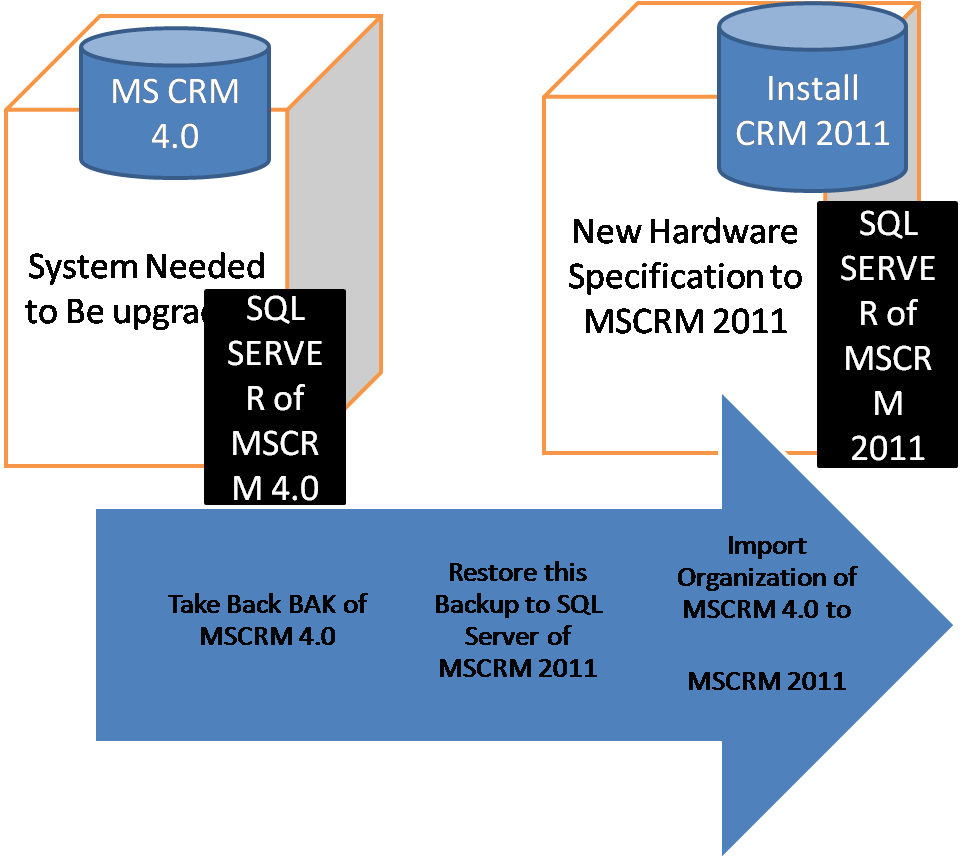
 The best way to upgrade is as follows:-
1) Take SQL backup of MS CRM4 .
2) Create a Database in MS CRM 2011 SQL Server. Overwrite it or restore the backup of MS CRM 4 on it.
3) Now open Deployment Manager. Click create Import
Ogranization.
4) Now select database server name and your new database on which you have uploaded the backup of MS CRM 4(STEP 2) and enter your report server name.
5) After finishing, check for all customizations, JS ,
Plugins, Workflows ISVs that are they imported.
6) New ISV pages gets added as new tab and JS as new libraries in MS CRM 2011.


I think it would give a very good picture of upgrading  to CRM 2011,in next blog i will try to cover the post upgrade activities which involve handling the java script , plugin and ISV component. 

Saturday, 21 September 2013

Ms Crm 2013 Orion Release


Microsoft will be releasing version 2013 of Dynamics CRM, code-named Orion. A new version means brand new features aimed at improving every aspect of the application.
  1. User Experience
·         Instead of having a permanent navigation pane on the left hand side the new model will appear on top, switch tiles as options are selected and disappear when not used to allow for more screen real estate.
·         Instead of a ribbon with multitude of buttons there is now a command bar with up to 7 items so it is easier to remember. Additional items are exposed from the ellipsis
·         Each module (Sales, Marketing, and Service) has its own home page where each can have its own dashboard.
·         The record form has been redesigned so that all the necessary information is visible or quickly accessible.
·         A new Quick Create function allows you to add relevant related data in a more intuitive fashion.
·         The interface will reformat the layout across window sizes and device types; desktops, tablets and phones. CRM is now cross browser compatible and integrates to Yammer, Skype, Lync and Bing Maps.
·         It has an auto-save feature, global search and in-line grid editing for Opportunity Products.
  1. New Functionality

  • Processes can span entities. One process might include a lead and an opportunity, another might start at the opportunity progress through a quote and go back to the opportunity.
  • Processes can have stages. Rules can be setup so that processes cannot move through stages until all necessary steps are accomplished.
  • Users can switch from one process to another. Flexibility can be created to accommodate any situation because business sometimes doesn’t moves in a straight line. For example, a cross sell opportunity that got put on hold because the customer was being acquired might get revived as a new lead because the new company has to be re-qualified, but we don’t want to lose the history.
  • Stages can be linked to stage categories. Process stages can be assigned to independent stage categories so reports can be created across all processes.
  • Roles can be assigned to processes. Users can be limited to which processes they can follow.
  • An entity can belong to multiple processes. Opportunities can have different stages per process, for example, which was difficult to achieve in prior CRM versions.

  1. Technical Improvements
·         The current CRM Outlook Client design lumped its processes within the Outlook memory stack. The effect has been lower stability and reliability because of high memory use, leaks and fragments
·         The new CRM Outlook client isolates its processes into two separate memory stacks. This way if there are a lot of customizations, and if they happen to leak memory, they won’t affect the overall Outlook experience.
·         One difference between the Outlook Client and the Web Client is since Outlook has the left hand navigation; CRM will continue to use it allowing for more space at the top of the screen.
·         In 2011: Currently synchronizing emails between an email server and the CRM server worked through either Outlook or the CRM email router. Synchronizing though Outlook requires Outlook to be up and running. The Email Router needs to be installed on an on premise server and be administered separately from CRM.
·         CRM 2013 can now synchronize directly to a mail server without the need for Outlook or the Email Router. If the mail server is Microsoft Exchange, emails, tasks, appointments and contacts are synchronized. Other POP3/SMTP mail servers will only sync email. The sync configuration is handled all within CRM which enables it to be used in online deployments. Besides users, email processing can also be configured for CRM queues.
·         Conditional business rules (i.e. make a field read only when another field contains a certain value) up to now had to be implemented with JavaScript. These had to be maintained independently by device. Now a designer allow for quick creation of a wide variety of rules that will work on all devices.
·         Another function that will reduce developer time is the ability to run workflows synchronously and post results back to the form within the same transaction.  This was previously accomplished with JavaScript.  This new capability allows you to run the workflows pre or post change and also either under the calling user security or the workflow owner security.
·         Actions are a new function similar to workflows that can now perform a collection of record changes that depend on variable input or output parameters across steps in the process.  Previously this functionality had to be performed by multiple web service calls.
·       Technical Limitations
  • Tablets are restricted to 75 fields and 10 related entities or 5 tabs within forms. iFrames or Web Resources (except for JavaScript) are not available on tablets.
  • Unsupported CRM 2011 customizations may not work in 2013. HTML DOM manipulations will throw script errors. The CRM 4.0 client API is not supported any longer.

  1. Upgrade Process

Customers on CRM 4.0 must upgrade to CRM 2011 before they can upgrade to CRM 2013.
Unsupported CRM 2011 customizations may not work in 2013. HTML DOM manipulations will throw script errors. The CRM 4.0 client API is not supported any longer.

Wednesday, 11 September 2013

Create a add-in in for outlook 2007 to append a message on create of activity

using System;
using System.Collections.Generic;
using System.Linq;
using System.Text;
using System.Xml.Linq;
using Outlook = Microsoft.Office.Interop.Outlook;
using Office = Microsoft.Office.Core;
using Microsoft.Office.Interop.Outlook;
using System.Windows;
using System.Windows.Forms;
namespace OutlookAddIn1
{
    public partial class ThisAddIn
    {
        Outlook.Inspectors inspectors;
        private void ThisAddIn_Startup(object sender, System.EventArgs e)
        {
            inspectors = this.Application.Inspectors;
            inspectors.NewInspector +=
            new Microsoft.Office.Interop.Outlook.InspectorsEvents_NewInspectorEventHandler(Inspectors_NewInspector);
            this.Application.ItemSend += new ApplicationEvents_11_ItemSendEventHandler(saveEmail);

        }

        private void ThisAddIn_Shutdown(object sender, System.EventArgs e)
        {
        }

        #region VSTO generated code

        /// <summary>
        /// Required method for Designer support - do not modify
        /// the contents of this method with the code editor.
        /// </summary>
        private void InternalStartup()
        {
            this.Startup += new System.EventHandler(ThisAddIn_Startup);
            this.Shutdown += new System.EventHandler(ThisAddIn_Shutdown);

        }

        #endregion
        public void Inspectors_NewInspector(Microsoft.Office.Interop.Outlook.Inspector Inspector)
        {
            Outlook.MailItem mailItem = Inspector.CurrentItem as Outlook.MailItem;
            Outlook.TaskItem taskItem = Inspector.CurrentItem as Outlook.TaskItem;
           Outlook.AppointmentItem appItem = Inspector.CurrentItem as Outlook.AppointmentItem;
            DialogResult res = MessageBox.Show("Do you want to create Private Activity ? Press ok  ", "", MessageBoxButtons.OKCancel);


            if (mailItem != null && (res == DialogResult.OK))
            {
                if (mailItem.EntryID == null)
                {
                    mailItem.Subject = "[MNPI ACTIVITY:]";
            

                }

            }
            if (taskItem != null)
            {
                if (taskItem.EntryID == null)
                {

                    taskItem.Subject = "Private Task";

                }

            }
            if (appItem != null)
            {
                if (appItem.EntryID == null)
                {

                    appItem.Subject = "Private Appoinment";

                }

            }


        }

        private void saveEmail(object Item, ref bool Cancel)
        {

        }

    }

}

Sunday, 8 September 2013

Fetch XMl VS Query Expression in Mscrm 2011

When developer want to query in MSCRM 2011 often thinks of Query Expression or Fetch XMl.
A question arises in  developer mind what is the difference and which one is better.
Fetch is a proprietary query language that is used in Microsoft Dynamics CRM. It is based on a schema that describes the capabilities of the language. The FetchXML language supports similar query capabilities as query expression
Using fetch XML one can get in result attribute from related  entity also but not in Query expression. using FetchXML , you can set the Related Entity columns in filter criteria to return the Query Result. FetchXml allows the querying of CRM data using an XML representation.

Querying CRM DB using QueryExpression one cannot able to set Related Entity columns as filter criteria to return the Query Result.

Type of Entity in MSCRM 2011


Types of Entities in CRM:

·         System Entity:System entities are used by Microsoft Dynamics CRM to handle all internal processes, such as workflows and asynchronous jobs. You cannot delete or customize system entities.

·         Business Entity:Business entities are part of the Microsoft Dynamics CRM default installation and they appear in the customization user interface. An account, contact, and letter are examples of business entities

·         Custom Entity: After installation, you can add custom entities to Microsoft Dynamics CRM to address specific business needs of the organization. In a Microsoft Dynamics CRM Solution, you can set business and custom entities and attributes to be either customizable or non-customizable.